About user management and authentication
User management and password rule settings are under Configure > All Settings > Administer: User Management.
Detailed information about all user sessions is logged and maintained by the system. You can view:
• active or inactive users and their roles.
• password expiration for all the users.
• last login information including time, login address, and the login server.
User management page
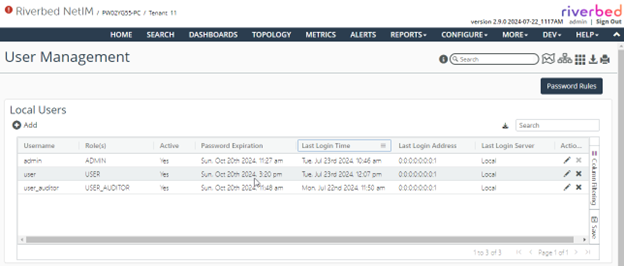
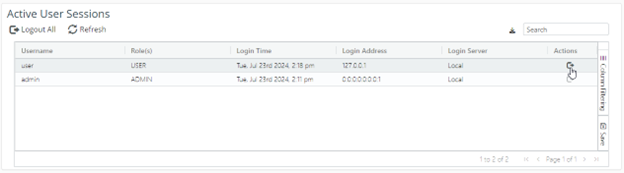
This view also provides information about all the Active User Sessions, along with the ability to end any active session.
Active user sessions
About authentication
Authentication is the verification that a given password matches a given username. Authorization is the granting of an access level based on a username.
NetIM supports local accounts, as well as the following authentication/authorization services:
• Security Assertion Markup Language (SAML)
• Terminal Access Controller Access-Control System Plus (TACACS+)
About user roles
The user role has no wizard access.
NetIM supports the following user roles:
• Administrator—The Administrator role is the NetIM super-user and as such has full and complete access to NetIM data and configuration.
• Privileged—The Privileged role has some ability to perform configuration (like create/edit/turn on/off alerts and create maintenance windows) but not full administrator rights. A user with privileged access has some, but limited, wizard access.
• User—The User role lacks the ability to modify collection, monitoring, and alerting behavior but does have access to grouping operations, custom attribute operations, custom view operations, and monitored path creation (without scheduling).
• Restricted—The Restricted role has read-only or view-only access. A user with the restricted role does not have the ability to modify any configuration option or setting that controls system operations. The restricted user is also prevented from viewing sensitive information.
• User Auditor—The User Auditor role can only view and configure the user audit workflow.
Configuring users
You configure users under Configure > All Settings > Administer: User Management.
Adding a local user
1. Under Local Users, add a user.
2. Determine if the user should be active or inactive. Active is enabled by default.
3. Enter a username.
4. Assign roles.
5. Optionally, select a date and time for expiry override.
6. Optionally, enter the inactivity timeout. The default is 15 minutes.
7. Determine if the user’s password never expires. It is disabled by default.
8. Create the user.
The system assigns a temporary password that needs to be shared with the new user.
New user creation
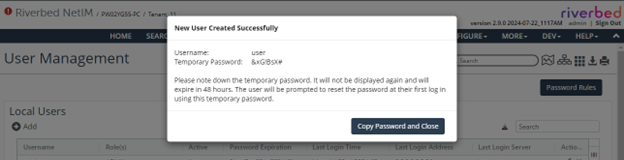
New users will need to log in before the temporary password expires and set their own password. If the password expires, then you will need to reset the user’s password.
Adding a SAML, SCAS, or TACACS+ user
Enter the user’s username exactly as they would enter it to log in to the SAML identity provider, and their role.
Role assignment is not necessarily required for SAML users if SAML attribute-to-NetIM-role mapping is set up. NetIM uses the assigned roles provided by SAML if you do not assign the user a role using NetIM’s User Management page.
1. Under SAML / SCAS / TACACS+ Users, add a user.
2. Determine if the user should be active or inactive. Active is enabled by default.
3. Enter a username.
4. Assign additional roles.
5. Optionally, enter the inactivity timeout. The default is 15 minutes.
6. Create the user.
Modifying a user account
Manually choosing an expiry date can be useful if you want to restrict a login for only a certain interval of time.
1. At the end of a user’s entry, select the pencil icon in the Actions column.
2. Assign roles.
3. Optionally, reset the user’s password.
4. Optionally, select a date and time for expiry override.
5. Optionally, modify inactivity timeout. The default is 15 minutes.
6. Determine if the user’s password never expires. It is disabled by default.
7. Save the user’s changes.
Deleting a user account
At the end of a user’s entry, select the X icon in the Actions column.
Logging out a user account
At the end of a user’s entry, select the Logout icon under the Action column at the end of that user’s entry in the Active User Sessions frame.
You can also log out all users simultaneously by clicking the Logout All icon.
About user login
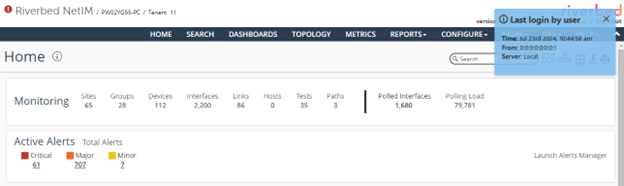
When a user logs in to NetIM, the user is presented with “Last Login” information for a few seconds. This message contains the username, last time when the user logged in, along with the host IP address where that user logged in from, and the Login server that was used to log in.
User last login
About inactivity logout
You can configure inactivity logout via the Default Settings button under Configure > All Settings > Administer: User Management.
To help protect information security and restrict unauthorized access, NetIM provides configurable automatic inactivity logouts. A user is logged out of the application after being inactive for a specified period of time.
Before logout, users receive a warning message when 30 seconds remain in the inactivity timeout period. If the user does not respond, they are automatically logged out of all tabs associated with the session. The warning message only appears on the currently visible browser tab.
Configuring inactivity logout
This Default Settings view is available only to users with administrative privileges and allows configuration of a global inactivity timeout.
Select Default Settings on the User Management page. The settings are as follows:
0 means that there is no timeout.
Default timeout is 15 minutes.
Range is between 0 to 2,147,483,647 minutes.
The setting will apply to all users unless overridden individually.
About per-user override
You can override the global setting for an individual user under Local Users or SAML / SCAS / TACACS+ Users.
If no specific timeout is configured for a user, the global default applies.
About password rules
Select Password Rules on the User Management page to view password compliance requirements.
Password rules
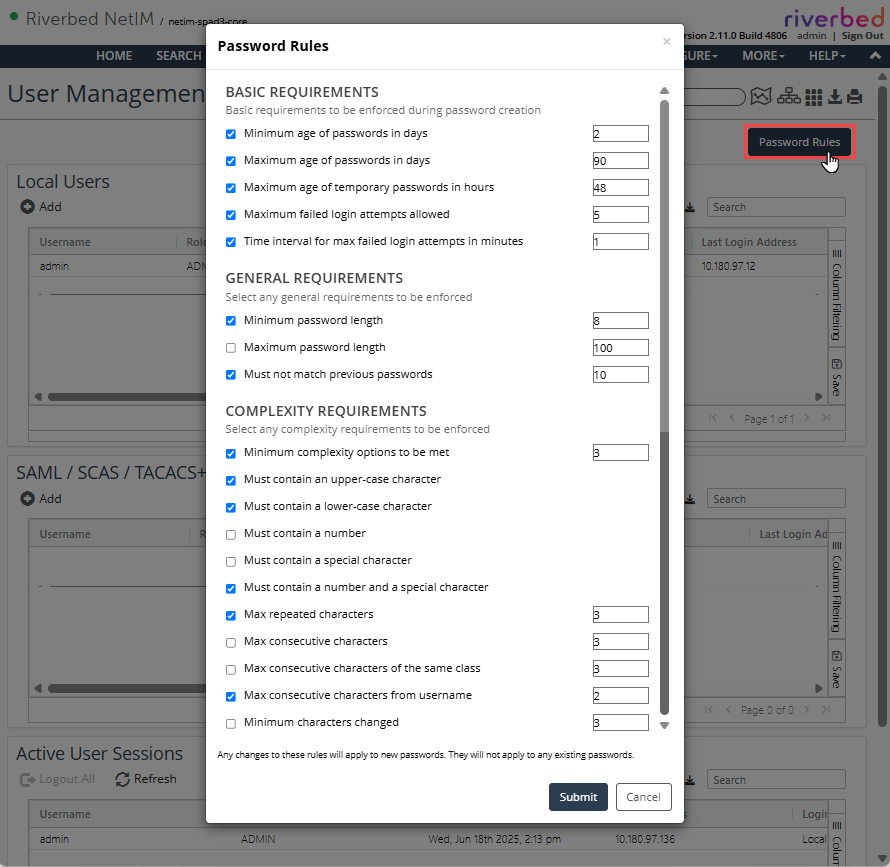
This view gives you the ability to configure password policy compliance rules, including:
• Basic requirements, like age of the passwords, maximum failed attempts allowed before a user is locked, and time to wait after failed attempts, and so on.
• General requirements, like character length of the password and uniqueness from the previous passwords, and so on.
• Complexity requirements, like case requirements, special characters or repetition limitations, and so on.
Configure the options in the following sections.
Basic requirements
These are the basic requirements that are enforced by the NetIM server during a new password creation, or when an existing one is changed.
Minimum age of password in days specifies how many minimum numbers of days a user must keep a password before changing it. The range is 1 to 30, and the default is 2.
Maximum age of password in days specifies how many maximum numbers of days a user can keep the same password. The range is 1 to 365, and the default is 90.
Maximum age of temporary passwords in hours specifies how long a temporary assigned password can be valid for. The range is 1 to 168, and the default is 48.
Maximum failed login attempts allowed is the maximum number of failed attempts before the system locks the user out and the user must wait a specified amount of time before anymore reattempts. The range is 1 to 100, and the default is 5.
Time interval for max failed login attempts in minutes configures the time the user must wait before any reattempts once maximum failed login attempts have been reached. The range is 1 to 1440, and the default is 1.
General requirements
These are the general requirements for any new password being created, or when an existing one is changed.
Minimum password length specifies the minimum character length of the password required by the system. The range is 8 to 20, and the default is 8.
Maximum password length specifies the maximum possible character length of the password that can be chosen. The range is 20 to 100 but is not required by default.
Must not match previous passwords enforces the password history policy and is used to ensure the number of unique passwords a user must set before using an old password. The range is 1 to 40, and the default is 10.
Complexity requirements
These are the requirements that make sure that the password being set is complex and difficult to break.
Minimum complexity options to be met specifies how many complex requirements should be met at the minimum for a password to be accepted. The range is 1 to 9, and the default is 3.
Must contain an upper-case character is required by default.
Must contain a lower-case character is required by default.
Must contain a number is not required by default.
Must contain a special character is not required by default.
Must contain a number and a special character is required by default.
Max repeated characters is the maximum number of the same character that may be repeated in the password. For example: abacade, where character “a” is repeated three times. The range is 1 to 100, and the default is 3.
Max consecutive characters is the maximum number of same characters allowed consecutively in-a-row. For example: aaabcde, where “a” is repeated three times consecutively. The range is 1 to 100. It’s not required by default.
Max consecutive characters of the same class is the maximum number of consecutive matching characters of the same class. The range is from 1 to 100, and the default is 3.
Max consecutive characters from username is the maximum number of consecutive matching characters from username that may appear in the password. For example: user123/user789. The range is 1 to 100, and the default is 2.
Minimum characters changed is the minimum number of characters that should be different at a given position in the new password, when a current password is being changed. For example: abcde to 1abcde would have six changed characters, but abcde to 1bcde would only have one changed character. The range is 1 to 100. It’s not required by default.
About the user profile view
Once you set these password rules, the users will need to adhere to these rules when setting up their new password, or when changing their existing password. Users can change their password by clicking their username.
User profile view
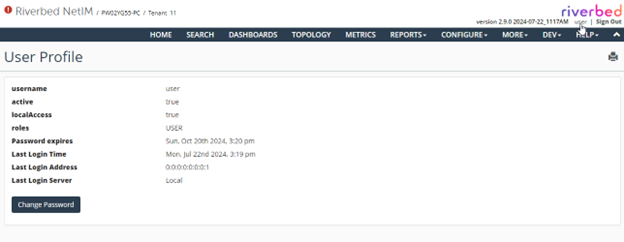
This user profile view provides basic information about last sessions and password expiry.
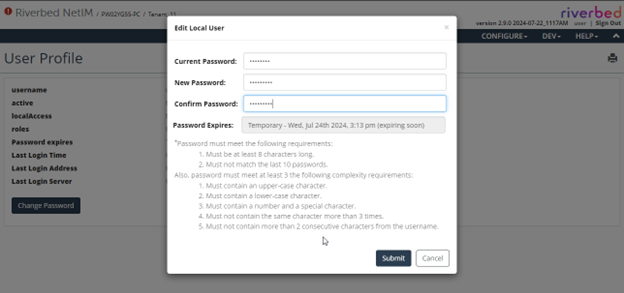
Whenever a user tries to change their password, they will be presented with the current set of rules you configured. If rules are changed again, then all the current passwords will be valid until their existing password expiry date. The new rules will only apply when the new password is chosen next time.
User password rules
About password compliance
Users may not change their own password until at least 48 hours after their last password change.
All passwords expire 90 days after they are changed. Users will be warned when their password is near expiration by an orange warning icon at the top of the page.
Password expiration warning icon

Clicking this icon redirects the user to a page to change the password. If a user does not change the password before it expires, the user is required to do so during the first login after it has expired.
Passwords may only be set by the actual user. When an admin adds a new user, or resets an existing user’s password, a random password is generated that should be given to the user.
This password is valid for 48 hours and must be changed the first time the user logs in. (A user can always change a temporary password, even if it would violate the 48-hour restriction mentioned above.)
A user’s account will be locked if there are five or more failed login attempts over the last minute. The account will unlock automatically once failed login attempts fall below this threshold.
Tracking user logins
User login and logout activity is tracked in the following log file on NetIM core:
<install_dir>/log/vnes_analytics_logins_logouts
The following information is written to the log:
• Username
• Timestamp
• Machine name or IP address
• Browser type and version
• Login/logout success or failure
Example:
2021/08/23 07:09:45 INFO - [OPNETVnesWebService] Successful log in from 10.49.9.250. -- User: admin. Method: Local. SessionId: eK5Xu0pE/1XpO+nx0WDgyw==.
2021/08/23 07:10:07 INFO - There are currently 1 users logged in to the system.
2021/08/23 07:10:07 INFO - 1 users with role ADMIN.
2021/08/23 11:40:39 INFO - Forced to log out. -- User: admin. Method: Local. SessionId: java.util.HashMap$KeyIterator@4fcf3a2e.
2021/08/23 11:41:29 INFO - [OPNETVnesWebService] Successful log in from 10.49.9.250. -- User: admin. Method: Local. SessionId: tXJj8g0tMXJ3WZ7LvN9P5A==.