Configuring alert profiles
To create a new alert profile, click Add.
Configure the settings for the alert profile, then save your settings to the server, or revert to discard your current changes.
Alert Profiles screen

Under Create Alert Profile, these configuration options are available:
Create alert profile
Creating an alert profile
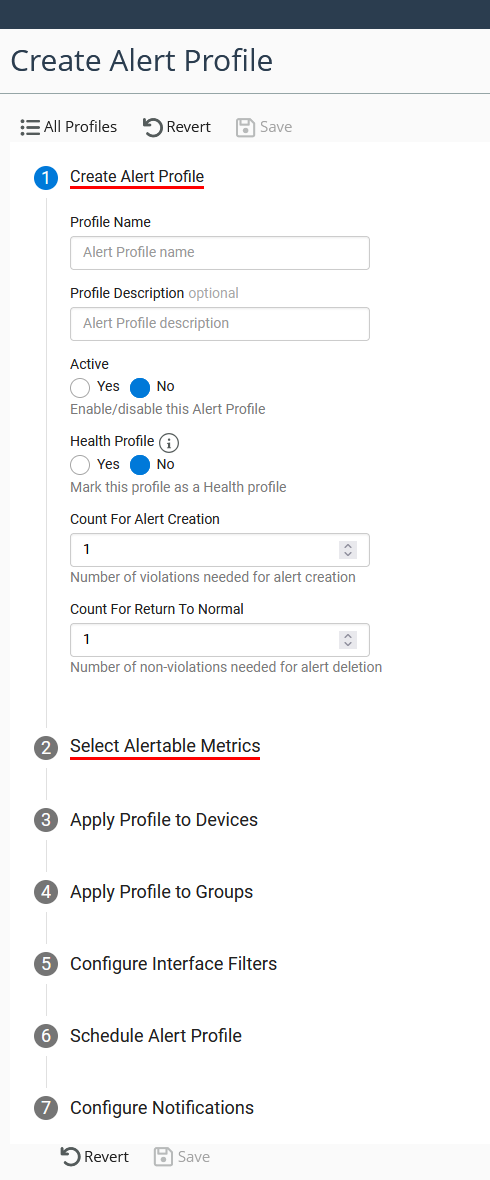
Profile Name
Give your alert profile a name.
Profile Description
Optionally, add a description.
Active
Enable or disable the alert profile.
Health Profile
You can mark the alert profile as a health profile. If you do, the thresholds here are used to calculate device health. Each device can only be associated with one Health profile at a time. If you add a device to a Health profile, it's automatically removed from other Health profiles. Devices not assigned to a Health profile use default thresholds.
Count For Alert Creation
The number of violations needed for alert creation. The default number is 1. See
Configuring alerting entry and exit tolerances for more information.
Count For Return To Normal
The number of non-violations needed for alert deletion. The default number is 1. See
Configuring alerting entry and exit tolerances for more information.
Select alertable metrics
Select which metrics to monitor, choose comparison algorithms, and set threshold values for each severity level (minor, major, critical). When the dynamic-only algorithm is selected, the user does need to specify the threshold values.
You can configure thresholds for specific components, such as specific disks or CoS classes, by using the Component Filter option. Enable the Component Filter in the configuration settings, select the appropriate index field, and enter a regular expression that matches the desired component names.
For example, if you want to include any CPU whose name starts with the letter “V,” use the following pattern: V.*. This ensures that only components with names beginning with “V” are considered when applying thresholds.
Apply profile to devices
You can apply your alert profile to devices from the Alerts Profile page or the Device Manager.
Apply profile to groups
You can apply your alert profile to groups.
Configure interface filters
Optionally, you can add an Advanced Interface Filter to narrow which interfaces trigger alerts. This uses the same search expression syntax as the Search and Report pages.
Schedule alert profile
Set when the alert profile should be active.
Configure notifications
Enable notification mechanisms for the alert profile using the check boxes for each mechanism and provide any additional information as required for the selected mechanism, such as email recipient or Slack webhook address. Additionally, you can set the threshold violation tolerance to specify how many samples must exceed the threshold before triggering notifications. This applies to all notification mechanisms.
Each notification mechanism (SNMP, email, Slack, and so on) will have its own set of check boxes for controlling the following notification messages:
On Crossing
Sends a notification when a threshold is first crossed (after the tolerance period). Additional notifications are sent only when thresholds are crossed again.
Continuous
Sends notifications continuously while a threshold is violated (after the tolerance period).
Return-to-Normal Notification
Sends a notification when the metric returns to normal. This is enabled by default.
When active, the system not only issues notifications for threshold violations, but also sends alerts when the metric values recover and revert to acceptable levels.
Suppression Notification
Sends a notification when you manually suppress an alert in the web user interface. This is disabled by default.
If enabled, the system will send notifications not only for threshold violations, but also when alerts tied to the current profile are manually suppressed.
Template Tag
Specifies which set of template files to use with the current alert profile from the drop-down list.