Configuring proxy settings
Proxy configurations are under Configure > All Settings > Administer: Proxy Settings. Use the settings to globally configure web proxy access to NetIM.
Proxy configurations page
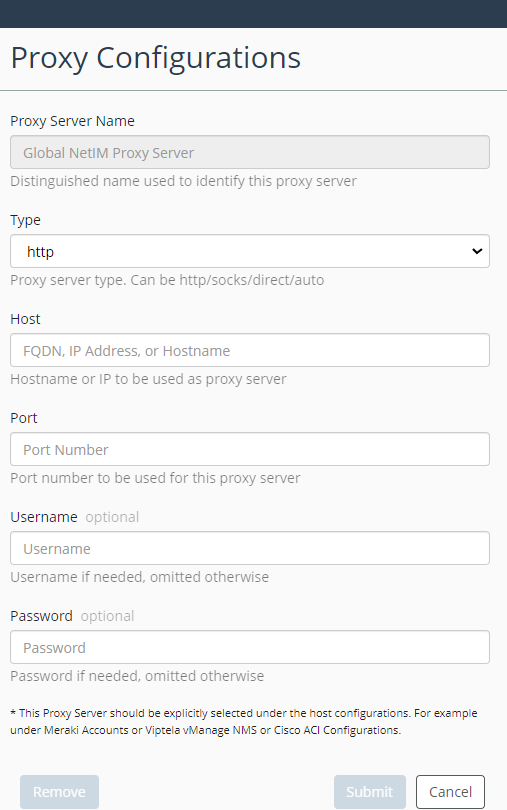
Define the type, host, and port number. You can optionally require user credentials to communicate with the proxy. After configuring, submit your changes.
Proxy auto-configuration (PAC)
A proxy auto-configuration (PAC) file determines whether web browser requests go directly to the destination or are forwarded to a web proxy server. NetIM supports the use of these files.
Proxy configurations page with auto type selection
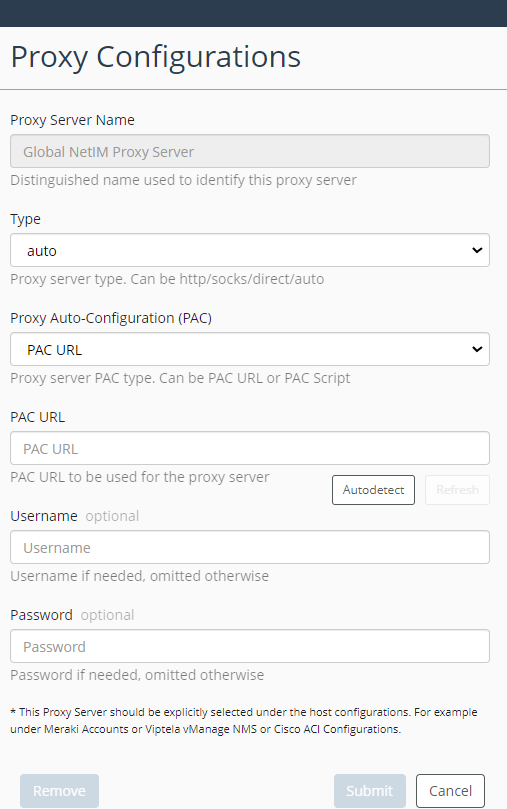
Select the auto type and use one of the following methods to supply a PAC file:
• PAC URL–Download the PAC file from the given URL.
• PAC Script–Provide the full text of the PAC file.
PAC methods
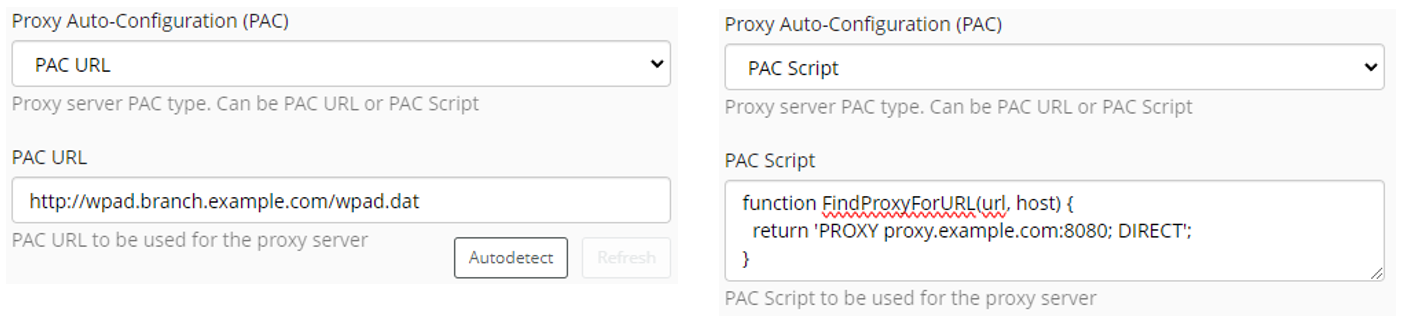
All standard PAC helper functions are supported. Microsoft’s extension helper functions are also generally supported.
The PAC URL Autodetect button uses the Web Proxy Auto-Discovery (WPAD) protocol. You must still submit the settings for any discovered URL to take effect. If no URL is discovered, an error message will appear. This is similar to “Automatically detect settings” in most major operating systems. The main difference is that NetIM requires explicit confirmation of the discovered URL.
The PAC URL Refresh button will redownload the PAC file if a manual refresh is needed. PAC files automatically refresh hourly. It is only available if the URL is already configured.
Errors and troubleshooting
Most errors will cause the proxy submission to fail with a message. Syntax or runtime errors in the PAC script will not be caught at submission.
Errors will appear in the LUS logs. The same errors will appear in other services/microservices as the update propagates. Check for errors/stacktraces referencing nashorn.
LUS log

On a script error, the connection will fall back to attempting a direct connection. NetIM does not offer tools to debug a PAC script.