Configuring annotations and flags
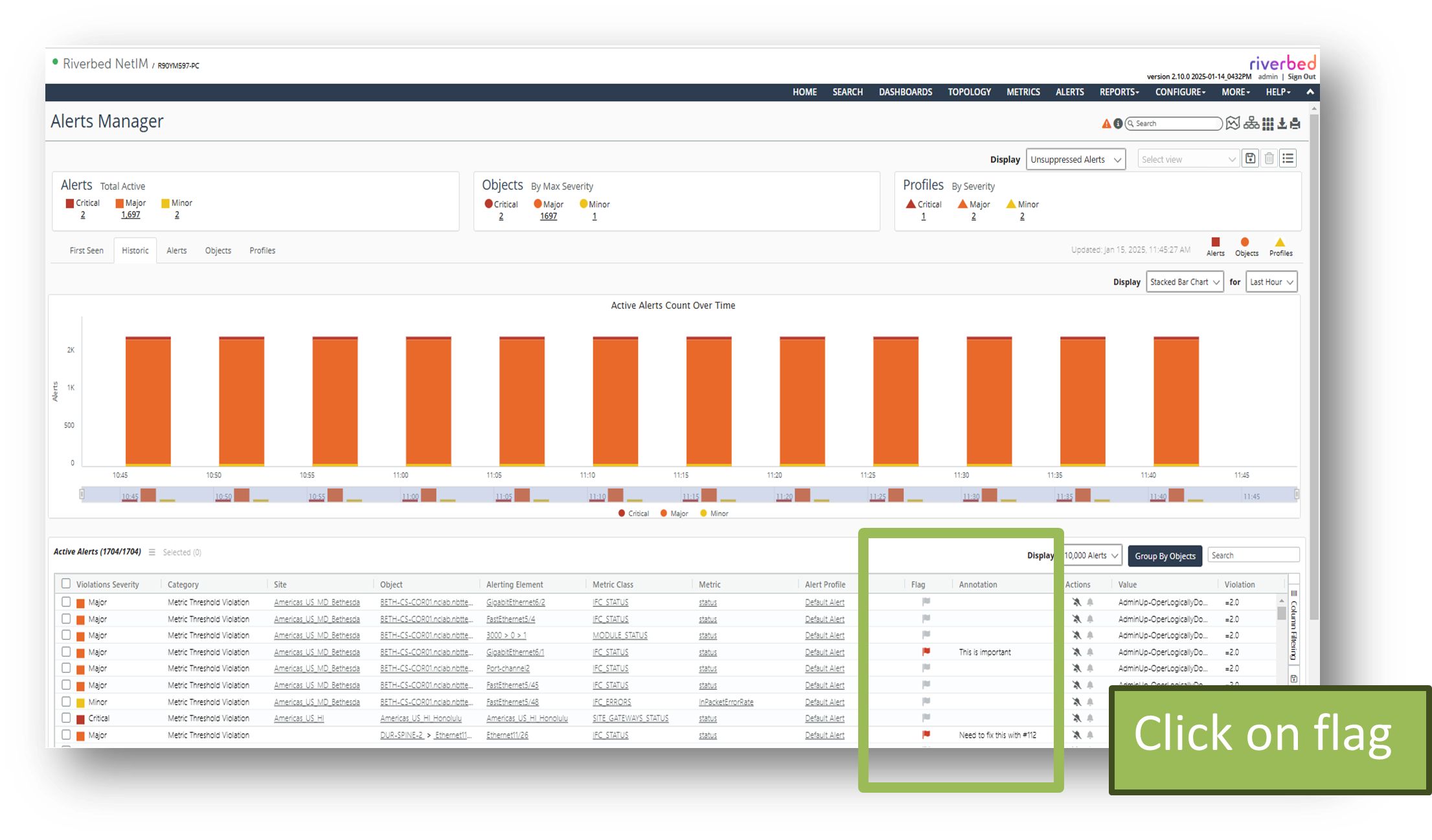
To modify the flagging and annotation, click on the flag icon (gray or red) in the row of the table for the alert.
Flag and Annotation columns
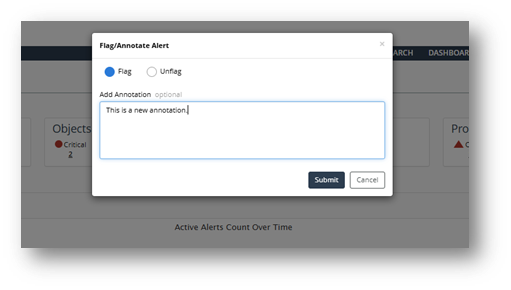
Set the Flag value and type in any text for the annotation message.
Flag/Annotation Alert message
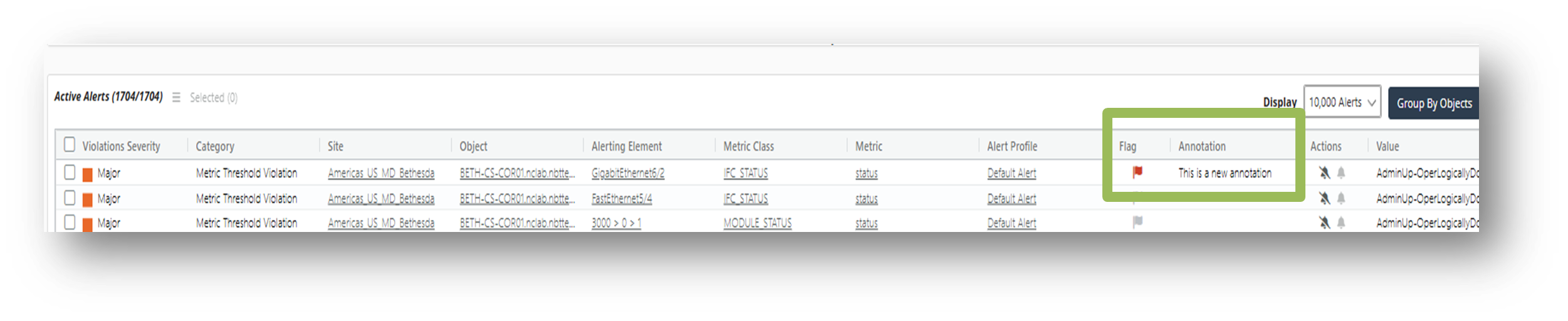
After clicking on the Submit button, the list of alerts will be updated to show the flagged/annotated alert.
New message under Annotation column
About filtering annotations and flags
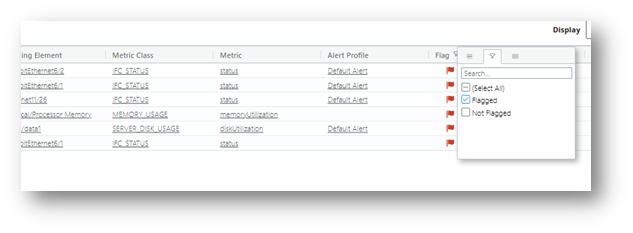
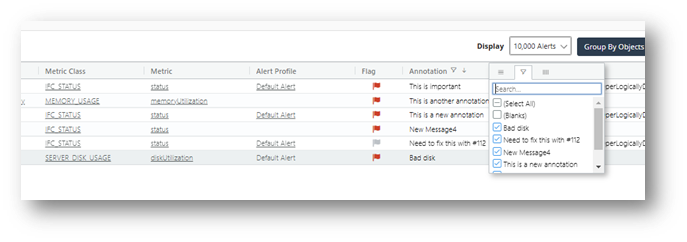
The standard filtering and sort options for the alert table can be used to display only the flagged alerts or only the annotated alerts.
Filtering flags
Filtering annotations
About annotation searching
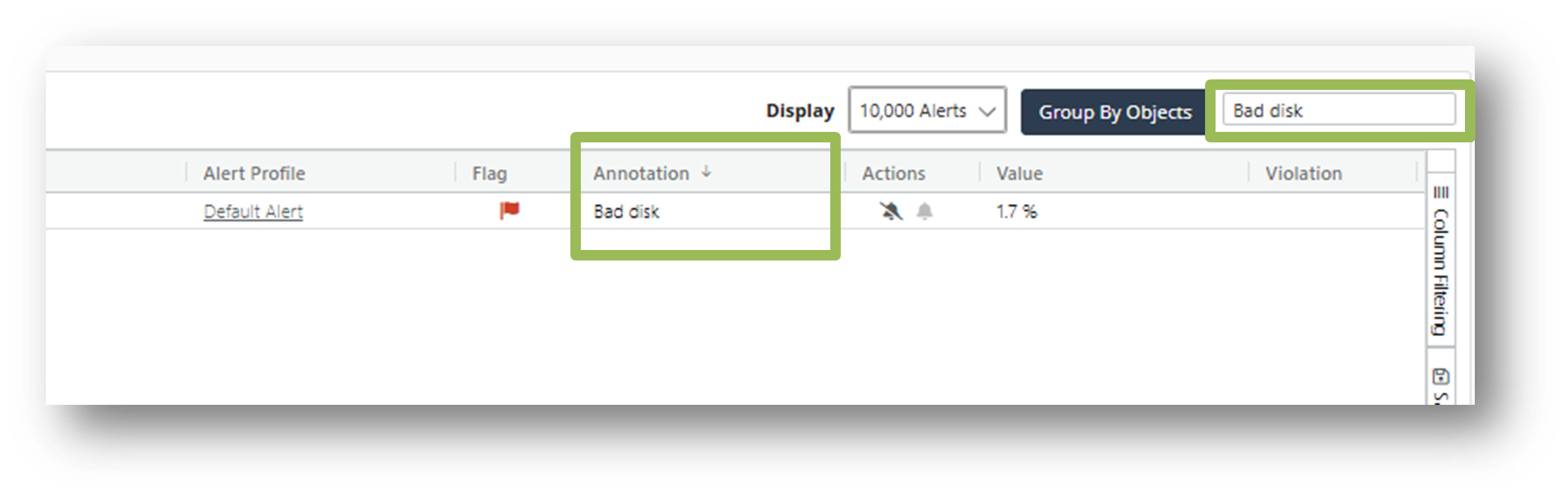
The standard search feature of the alerts table can be used to search for specific phrases within the set of annotations.
Annotation search
About persistence flagging alert transitions
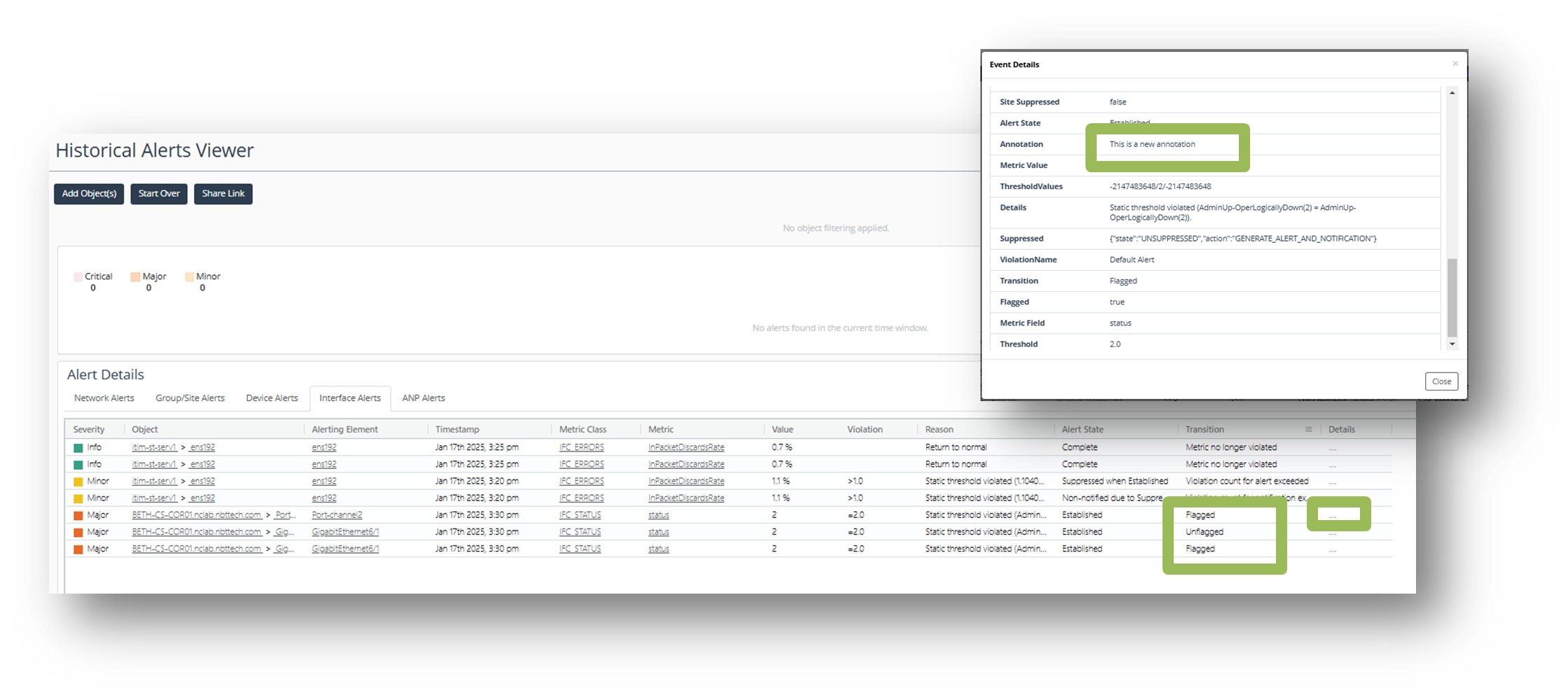
Details of the flagging operations are persisted as transitions on the alerts. This can be seen as events in the Historical Alerts Viewer. (Configure > All Settings > Historical Alerts Viewer)
Annotations in Historical Alerts Viewer
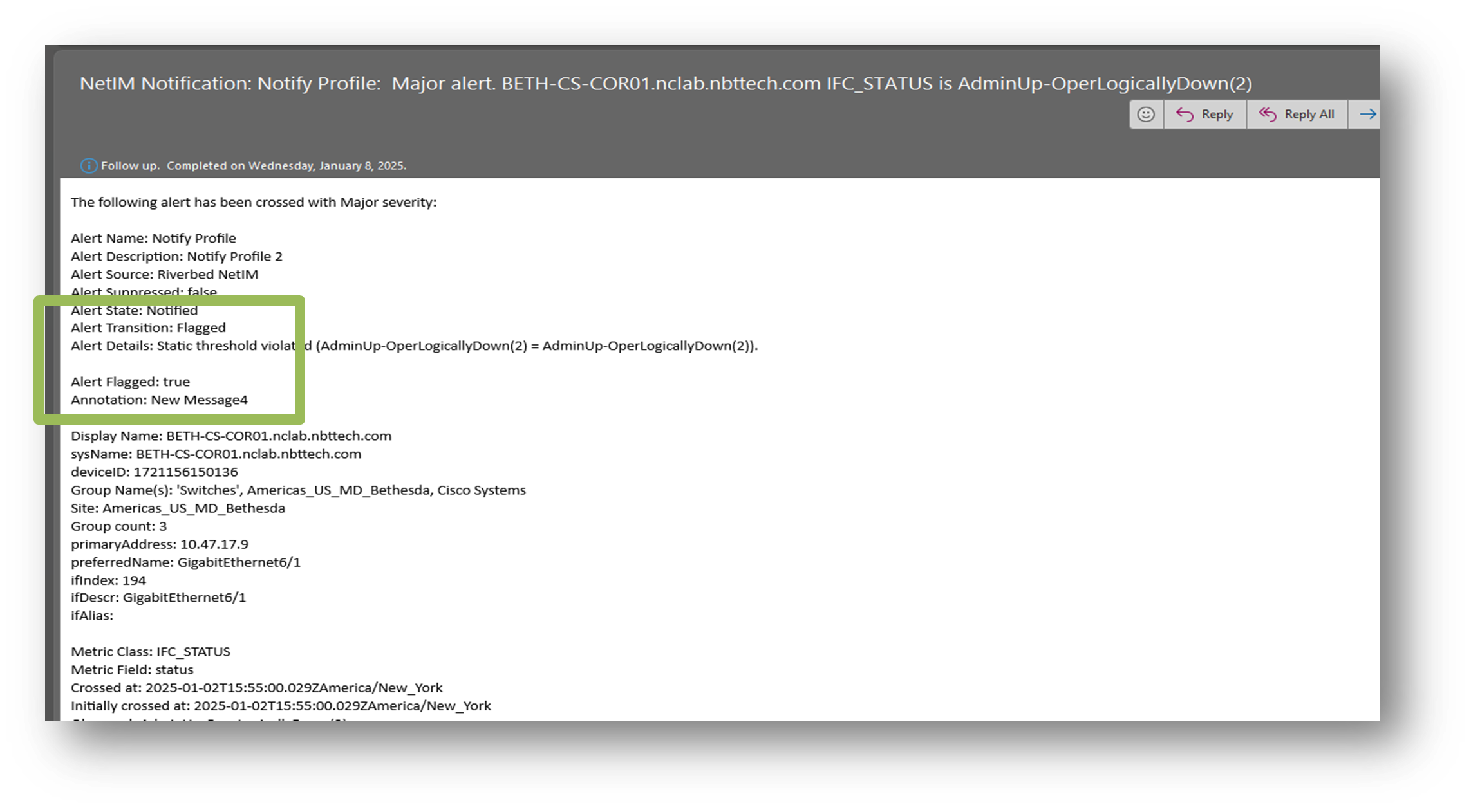
If notification is enabled for the Alert Profile that the alert is associated with, then notification messages will be sent when the flagging and annotation messages for alerts are modified. An example email notification message is displayed below.
Alert transition email notification
About completed flagged alerts
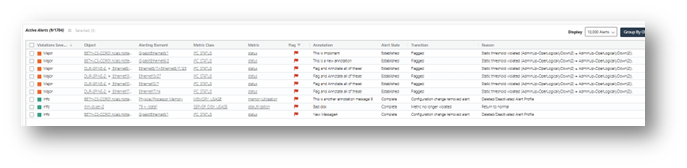
As mentioned earlier, flagged alerts are not removed from the system. They will appear in the alerts tables with severity set to Info and the Alert State set to Complete. To remove them, simply unflag them and they will be removed from the system.
Completed alert state
Modifying annotations and flags of multiple alerts
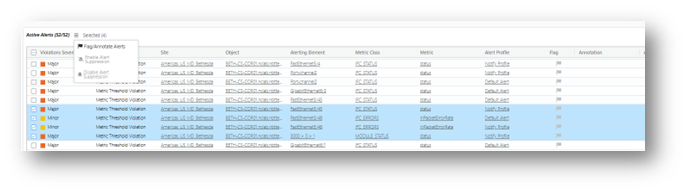
NetIM provides a mechanism for modifying the flag value and annotations of multiple alerts at the same time. In an Active Alerts table:
Select the checkbox on the alert to modify.
Choose the Flag/Annotate Alerts command from the menu.
Select the flag value and type in the desired annotation message.
Flag/Annotate Alerts
Flag/Annotate multiple alerts
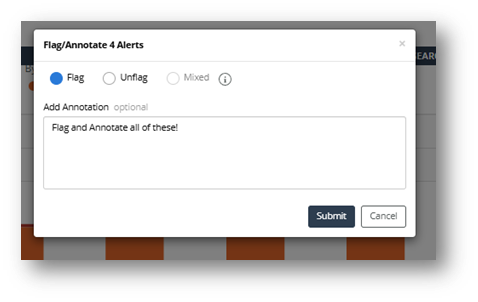
The system will modify all the select alerts.
Modified alerts
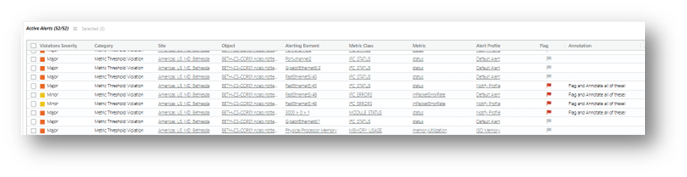
If you choose the Flag/Annotate Alerts command again for the same set of alerts (as shown below), the system will pop up a dialog box the flag and annotation values initialized to the values shared among the alerts.
Flag/Annotate Alerts
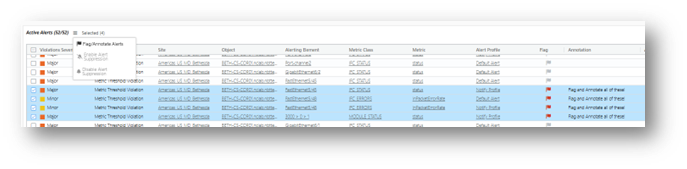
Since all of the selected alerts have the same flagging and annotation, the system can initialize the dialog box to show that.
Annotation for existing multiple alerts
If the user selected a different set of alerts, such as set that has mixture of flag values and annotations, the popup dialog box will indicate the mixture.
Flag/Annotate Alerts
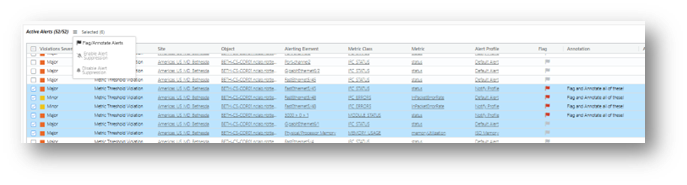
Annotation for mixed multiple alerts
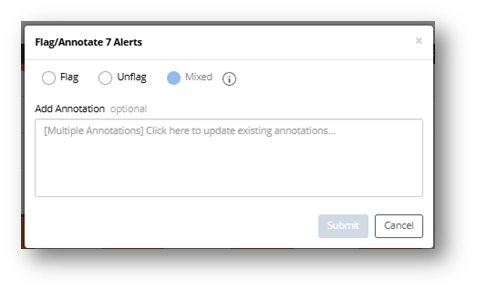
In this case, the user can decide whether to update the flag value, the annotation, or both. If the flag value is left at Mixed then none the flag values will be changed when Submit is clicked. Similarly, if the annotation field is not modified, then none of the annotations will be modified.