About Riverbed IQ alert notification setup
You can enable NetIM to send alert notification messages to Riverbed IQ. For details about IQ, including runbooks and webhooks, see the
Riverbed IQ documentation.
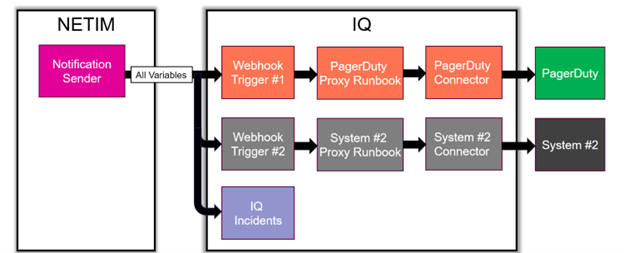
Riverbed IQ acts as a proxy: NetIM sends alerts to IQ, and IQ can forward them to other systems using runbooks. Riverbed IQ’s runbook functionality lets you automatically route and transform NetIM alerts and send them to other tools you use. This enables automatic forwarding to systems like PagerDuty, Slack, or other monitoring tools, custom formatting to match each destination system’s requirements, and centralized alert management through IQ.
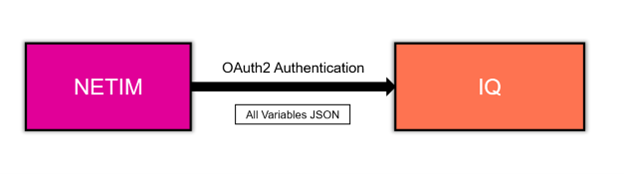
When you enable this integration, NetIM uses OAuth2 authentication to securely connect to Riverbed IQ. Once connected, NetIM sends each alert as a JSON notification message to IQ. A webhook in IQ receives the message and automatically triggers a runbook. The runbook processes the JSON data, converts it to the required format, and forwards it to your destination system.
To help you get started, NetIM provides example runbooks, sample JSON notification messages for reference, and documentation describing the JSON message structure.
NetIM to IQ authentication
IQ webhooks
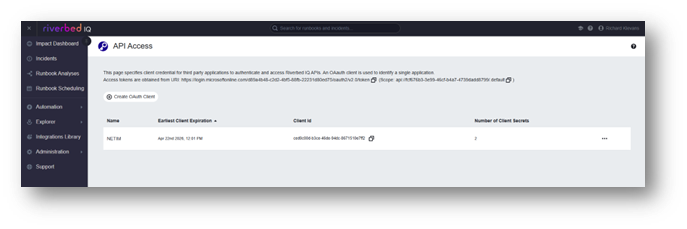
Getting the IQ client ID and secret
1. Log into IQ.
2. Choose Administration > API access.
3. Select Create OAuth Client.
4. Save the client ID and client secret in a secure place for configuring the IQ notification sender.
API Access page in IQ
Adding the IQ integration connector
To forward messages to a third-party system, you need to configure the appropriate connector. For PagerDuty:
1. Navigate to the Integrations Library page.
Integrations Library page in IQ
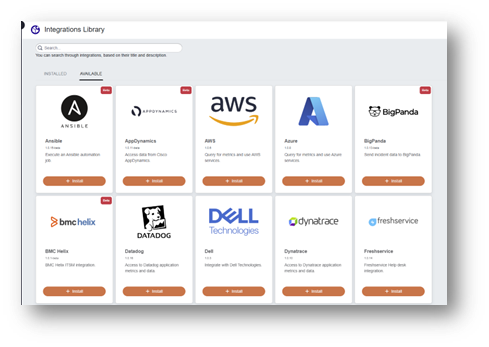
2. Click the Available tab.
3. Click + Install for the PagerDuty integration.
PagerDuty installation
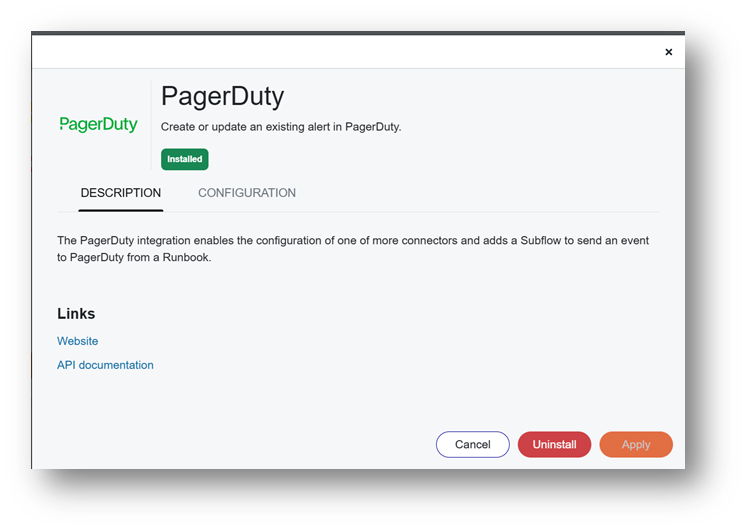
4. Click Install.
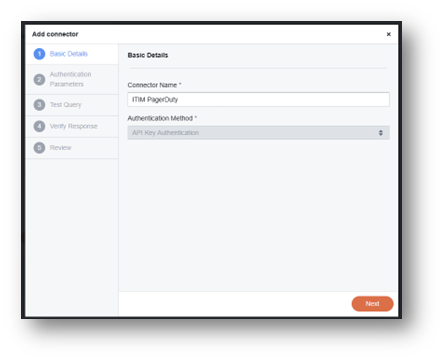
5. Give the connector a meaningful name and fill in the rest of the required information.
Connector basic details
Importing the IQ proxy runbook
NetIM includes a PagerDuty proxy runbook. You'll find it at:
/data1/riverbed/NetIM/latest/lib/xml/notification/iq-runbooks/pagerduty
1. Choose Automation > External Runbooks.
2. Click Import.
Importing a runbook
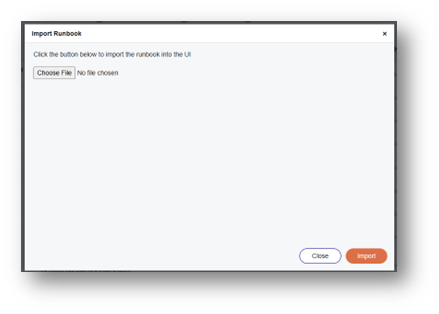
3. Click Choose File.
4. Select the .json file containing the runbook.
5. Select your desired connector.
Connector selection
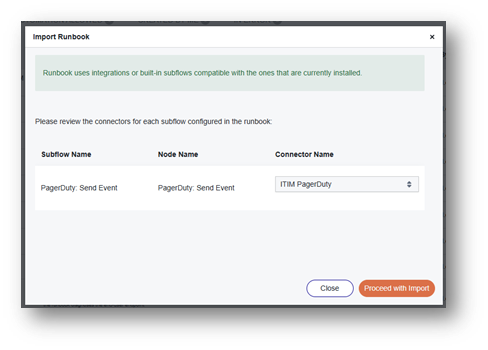
The runbook will be created automatically.
IQ runbook creation
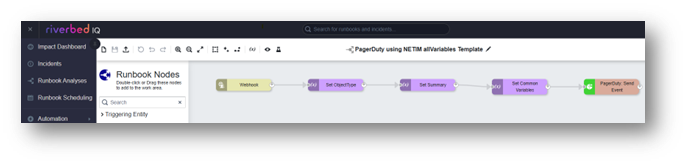
Assigning the runbook to a webhook
After importing, you need to assign the runbook to a webhook:
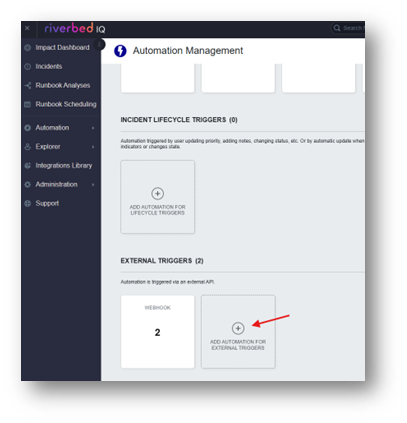
1. Choose Automation > Automation Management.
2. In the EXTERNAL TRIGGERS section, click ADD AUTOMATION FOR EXTERNAL TRIGGERS.
Automation Management page in IQ
3. Select Webhook as the trigger.
4. Click Next.
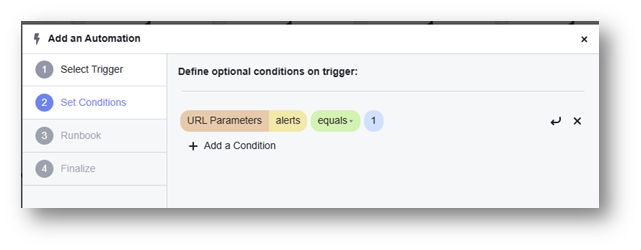
5. Add a condition to identify the webhook (e.g., URL parameter "alerts" equals 1).
Condition definition
6. Click Next.
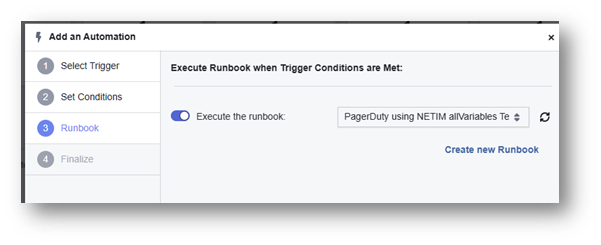
7. Enable Execute the runbook.
8. Select your runbook by name.
Runbook selection
9. Click Next.
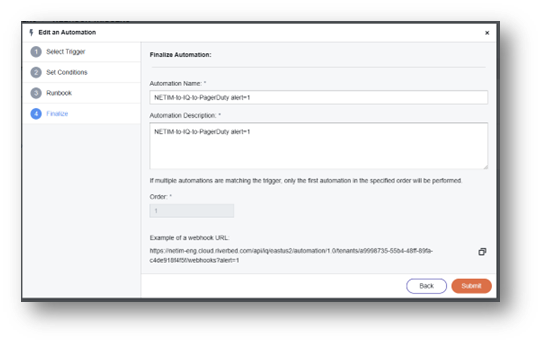
10. Fill in a name and description for the automation.
11. Make note of the webhook URL—the text after "webhooks" is your Trigger field for NetIM. In the following example, the trigger is “?alert=1”.
Finalizing automation
12. Click Submit.
New external trigger on Automation Management page
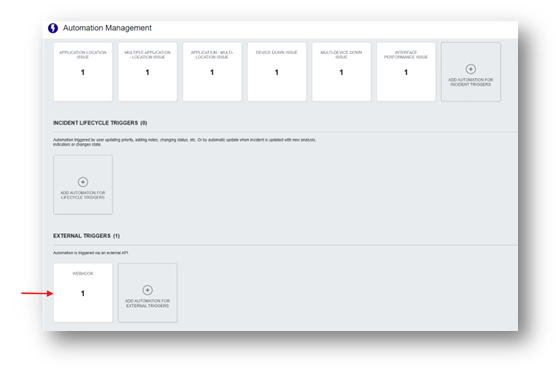
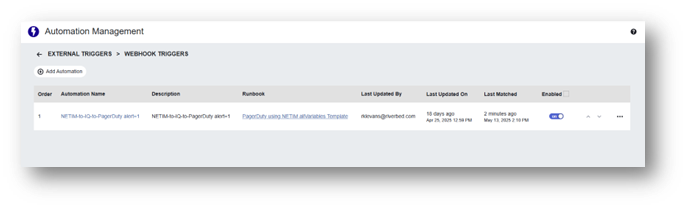
13. Click the WEBHOOK square to verify it’s enabled.
Webhook triggers on Automation Management page
Configuring the IQ notification sender in NetIM
1. Choose Configure > All Settings > Alert: Notification Senders.
2. Expand the IQ sender entry or add a new one.
3. Fill in the fields using your IQ credentials and the trigger from the webhook configuration.
IQ alert notification settings
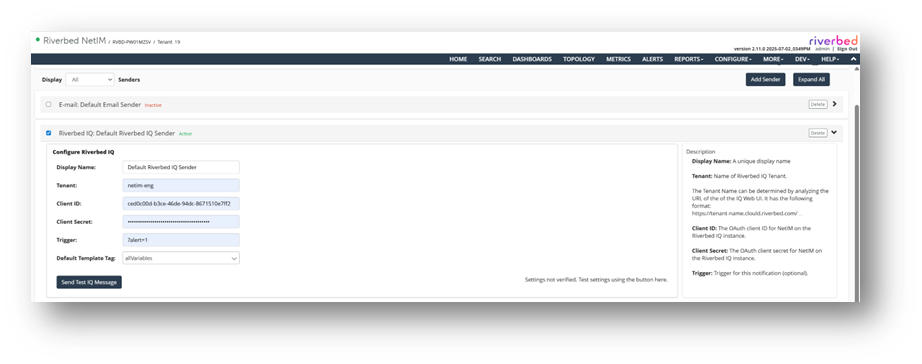
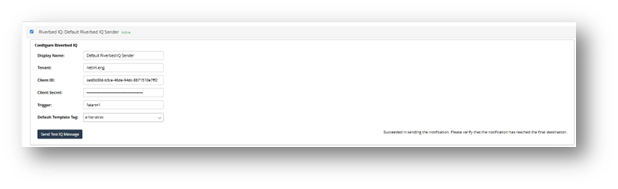
4. Click Send Test IQ Message and verify you get a “Succeeded...” message.
IQ alert notification verification
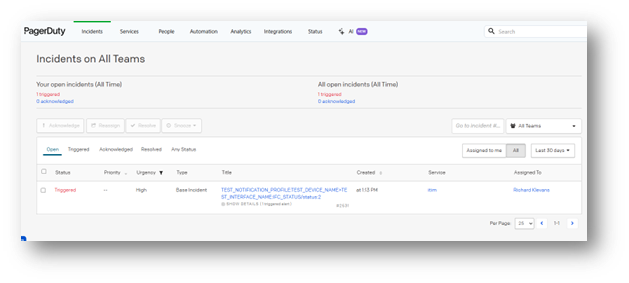
5. Check that the message appears in PagerDuty.
PagerDuty message verification
Enabling IQ notifications in alert profiles
1. Choose Configure > All Settings > Alert: Alert Profiles.
2. Edit the alert profile where you want to add IQ notifications.
3. Click the plus sign to add a new notification sender.
Adding a notification sender
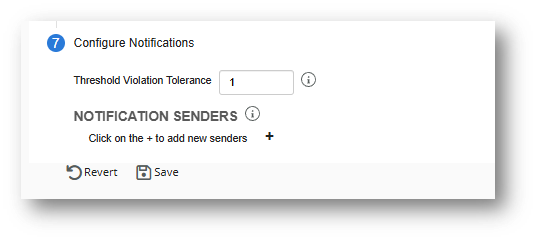
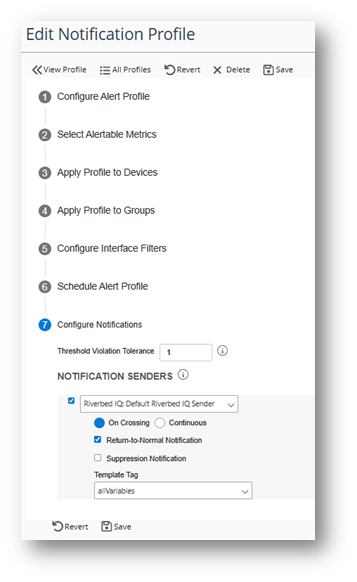
4. Choose the Riverbed IQ sender you configured earlier.
5. Enable it.
6. Always use the allVariables template for IQ. This gives IQ runbooks access to all alert event variables.
Riverbed IQ configuration for notification profile
About allVariables notification messages
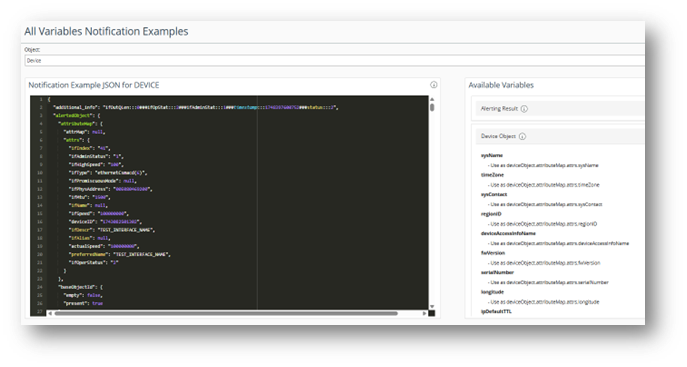
If you're developing or modifying IQ runbooks, you'll want to know what JSON messages NetIM sends to IQ. To see examples, choose Help > API Documentation > Notification Integration: All Variables Notifications Examples.
You can review the examples for each object type and their corresponding help information.
All Variables notification examples
Troubleshooting issues with IQ notifications
There are several methods that can be used for solving issues related to IQ notifications. If the expected notification messages are not received, try using these methods to get to the root cause of the problem.
Verify Sender Configuration
Verify that the tenant’s name, credentials, and trigger are all correct.
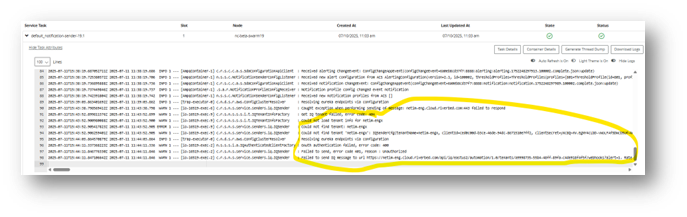
Check the Notification Sender logs
Notification sender logs
Verify IQ Triggering
Check the Last Matched time to see if IQ received the message.
Debugging the Runbook
If IQ received the message but the third-party system did not, try the following:
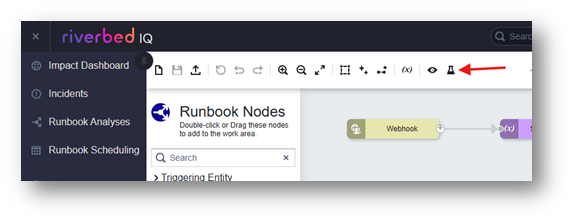
1. Edit the Runbook.
2. Click the Test button.
Test icon on runbook
3. Paste one of the All Variables examples into the HTTP Request Body field.
HTTP request body field
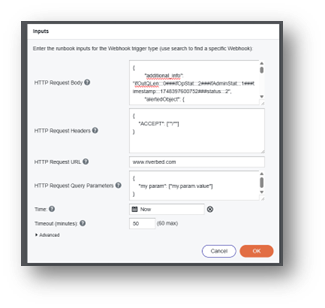
4. Click OK.
Runbook analysis
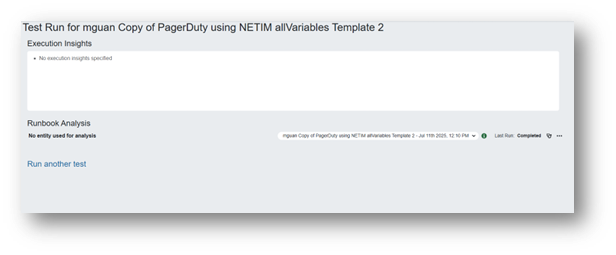
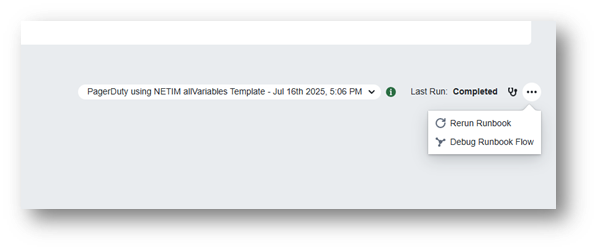
5. Click the ellipsis (...) menu and choose Debug Runbook Flow.
Debug Runbook Flow
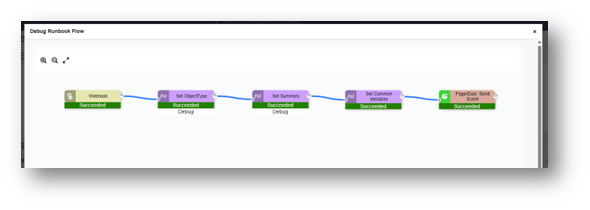
6. Make sure all the steps succeed.
Debug Runbook Flow
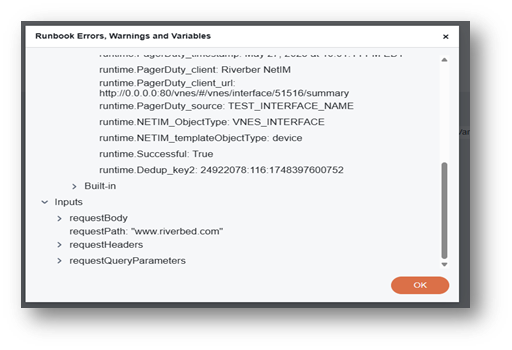
7. Click the “i” button to check runtime variables.
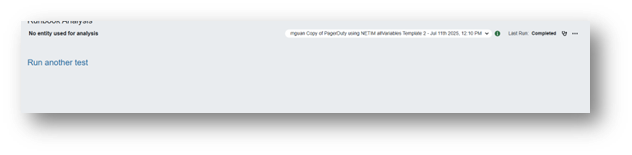
Runbook analysis
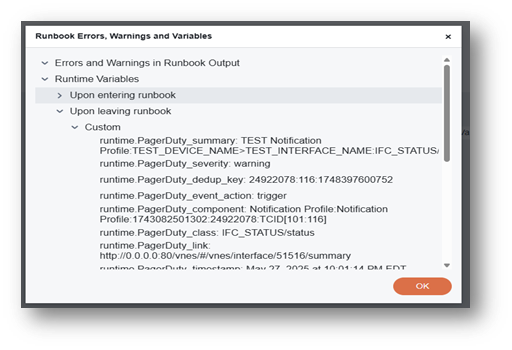
8. Verify the runtime.PagerDuty_summary and runtime.Successful values.
runtime.PagerDuty_summary variable
runtime.Successful variable